Create a storefront integration
Create a sandbox key, approve your origin, publish catalog data, and copy the storefront locator.
Complete these steps in Cipay Platform before running the quickstart. The images use synthetic sandbox values and hide secret material.
Where to get the storefront locator
The locator is created automatically from your current Cipay environment, merchant, and public slug. You do not create it or treat it as a secret.
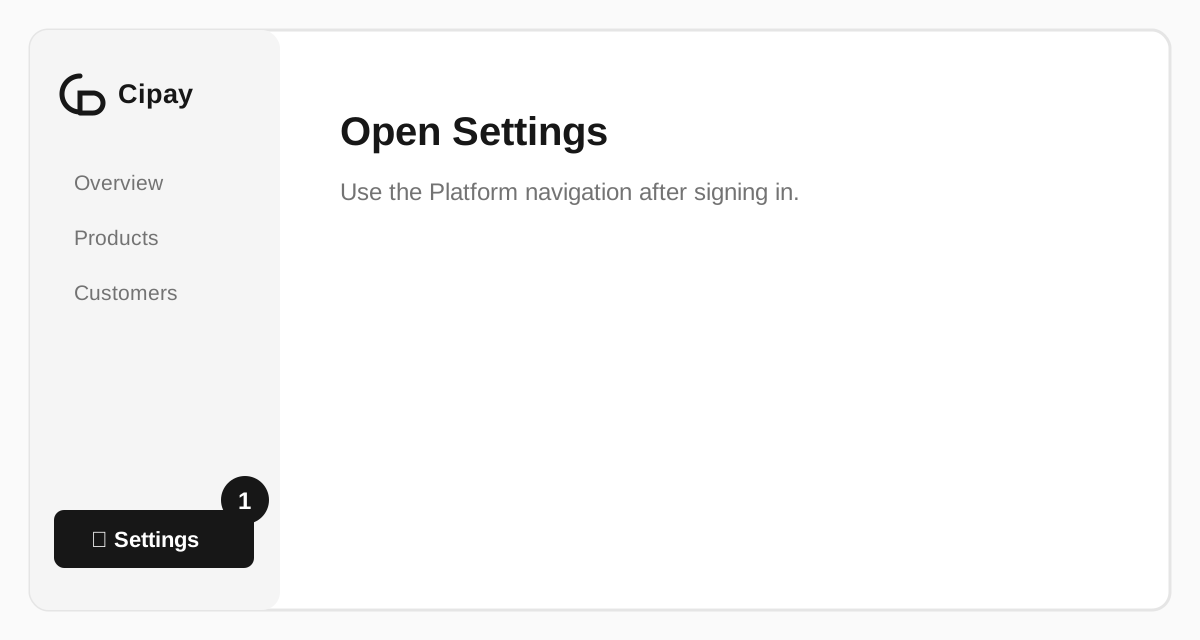
Open Settings
Sign in to Cipay Platform and select Settings in the left navigation.
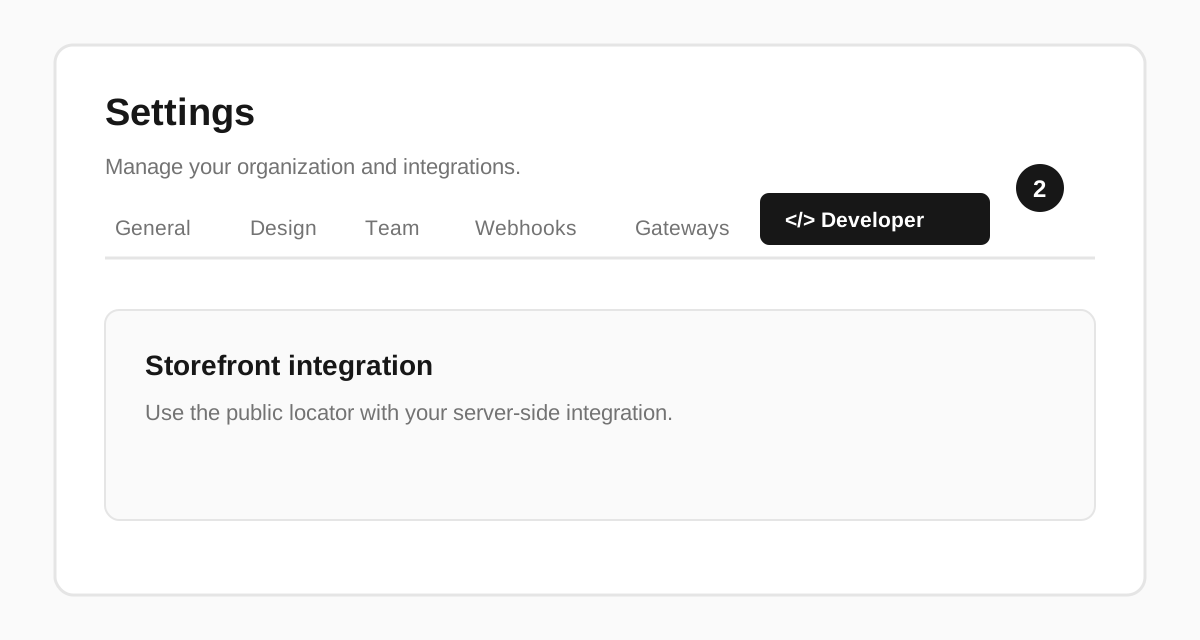
Select Developer
Choose the Developer tab. Owners, admins, and developer-role members can open this page; origin and API-key controls remain restricted to owners and admins.
Copy the locator
In Storefront integration, find Storefront locator and select Copy. Save it as CIPAY_STOREFRONT_LOCATOR in your server configuration. It is safe to expose, but keeping the configured value on the server prevents browser input from selecting another storefront.
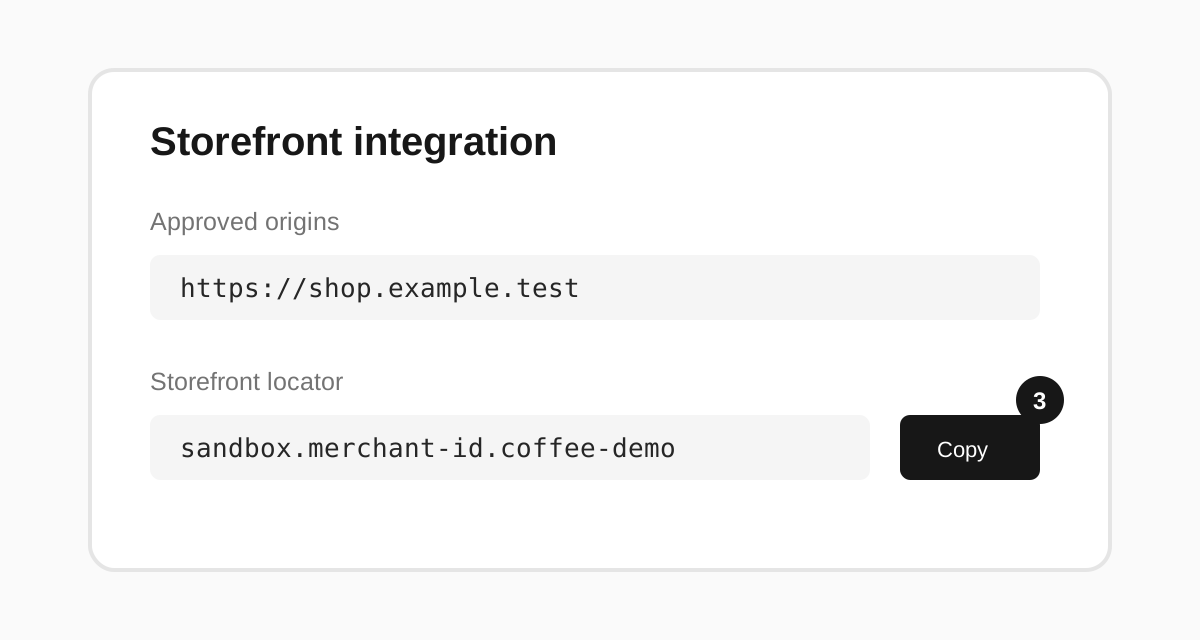
Expected result: your server configuration contains a value such as sandbox.merchant-id.coffee-demo.
If the card asks for a public slug, open Settings → General, create the slug, then return to Developer.
The walkthrough mirrors the current Platform controls with synthetic data because an authenticated, safely redacted capture is still required before public release.
Create a sandbox API key
Open Settings → Developer → API keys, select Sandbox, and grant only the capabilities your server needs. Copy the raw key once into your server secret manager.
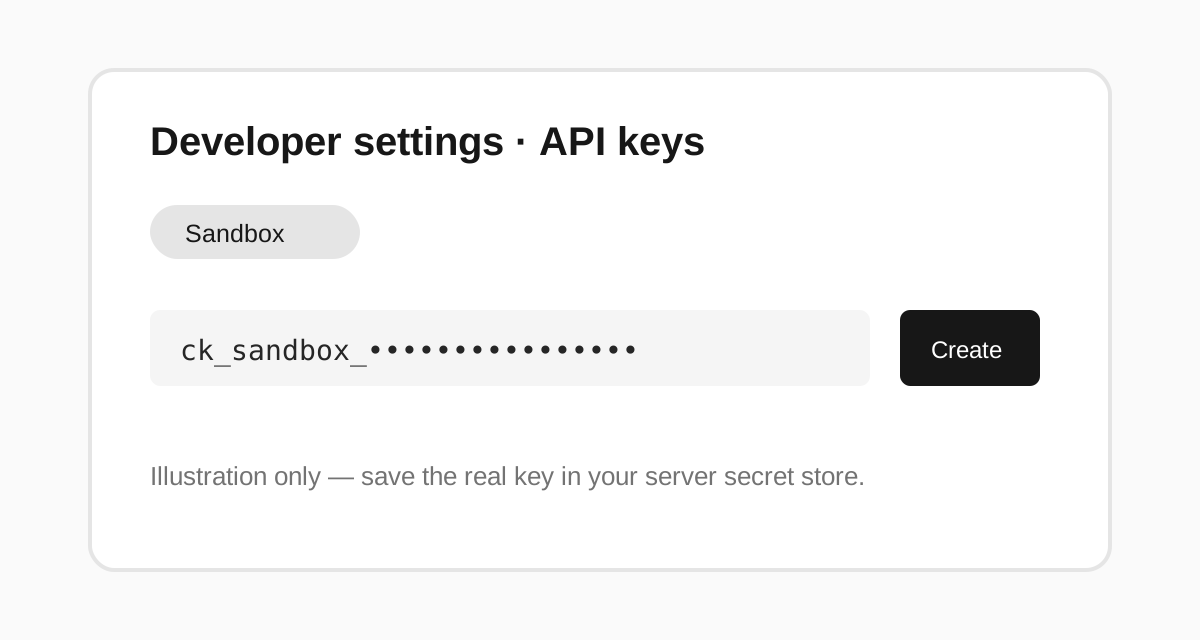
Expected result: your backend has CIPAY_SANDBOX_API_KEY; browser code and public environment variables do not.
Approve the application origin
Open Settings → Developer → Storefront integration. As an owner or admin, add the exact origin that serves your buyer endpoint, including scheme and port when present.
Expected result: https://shop.example.test is approved and developers can copy CIPAY_STOREFRONT_LOCATOR without seeing a secret key.
If the organization has no public slug, open Settings → General, create one, then return to Storefront integration.
Publish a product and price
Open Products, create a synthetic sandbox product, add at least one price, and set both to Published. Enter money as integer minor units; SAR 45.00 is 4500 halalas.
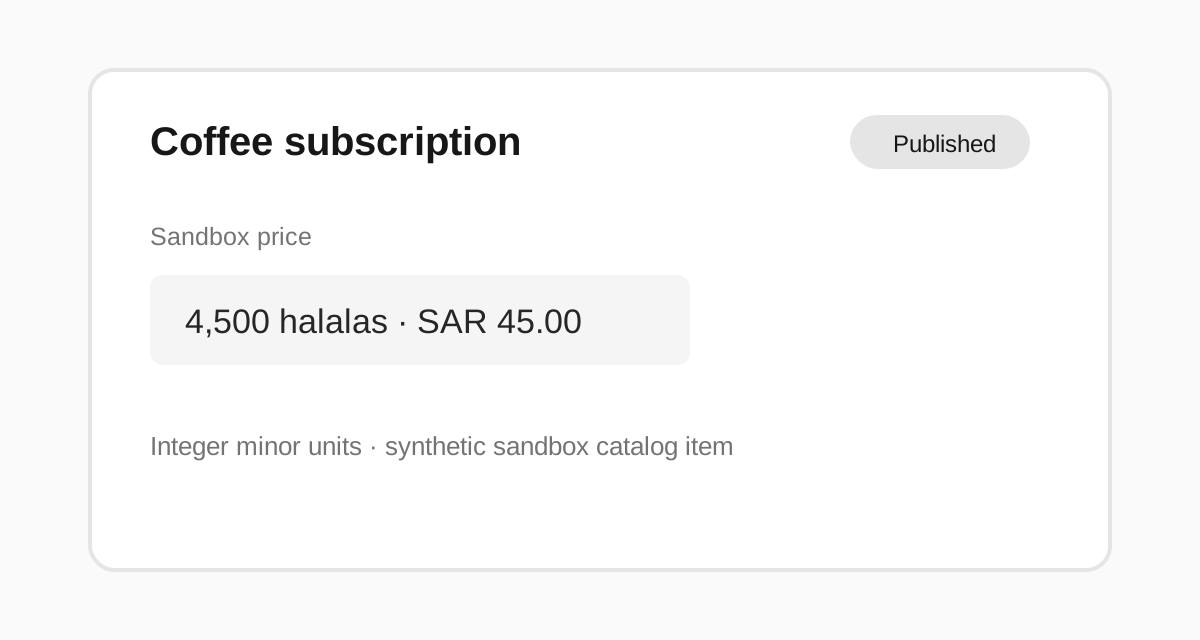
Expected result: products.list({ status: "published" }) returns the product and checkout can select its offer.
Verify from your server
const products = await cipay.products.list({
  status: "published",
  pageSize: 10
});

console.log(products.items.map(({ id, name }) => ({ id, name })));
Continue with the sandbox quickstart or review products and prices.